BSage is an ontology-based knowledge management system — an AI assistant that automatically classifies and connects incoming information. It collects data from various sources, visualizes relationships in a Knowledge Graph, and lets you find what you need with natural language search.
What BSage Does
| Feature | Description |
|---|---|
| Automatic knowledge organization | Automatically classifies, tags, and links incoming information |
| Knowledge Graph | Visually explore relationships between pieces of knowledge |
| 18 plugins | Integrations with Telegram, Slack, Discord, Email, RSS, and more |
| Natural language search | Semantic search to find exactly what you need |
| 2nd Brain | Three-stage knowledge management: Seeds, Garden, Actions |
Quick Start
Step 1: Create an Account and Sign In
- Go to sage.bsvibe.dev in your browser.
- Click the Sign in with BSVibe button.
- If you don’t have a BSVibe account yet, sign up at auth.bsvibe.dev .
- After signing in, you’ll see the dashboard.
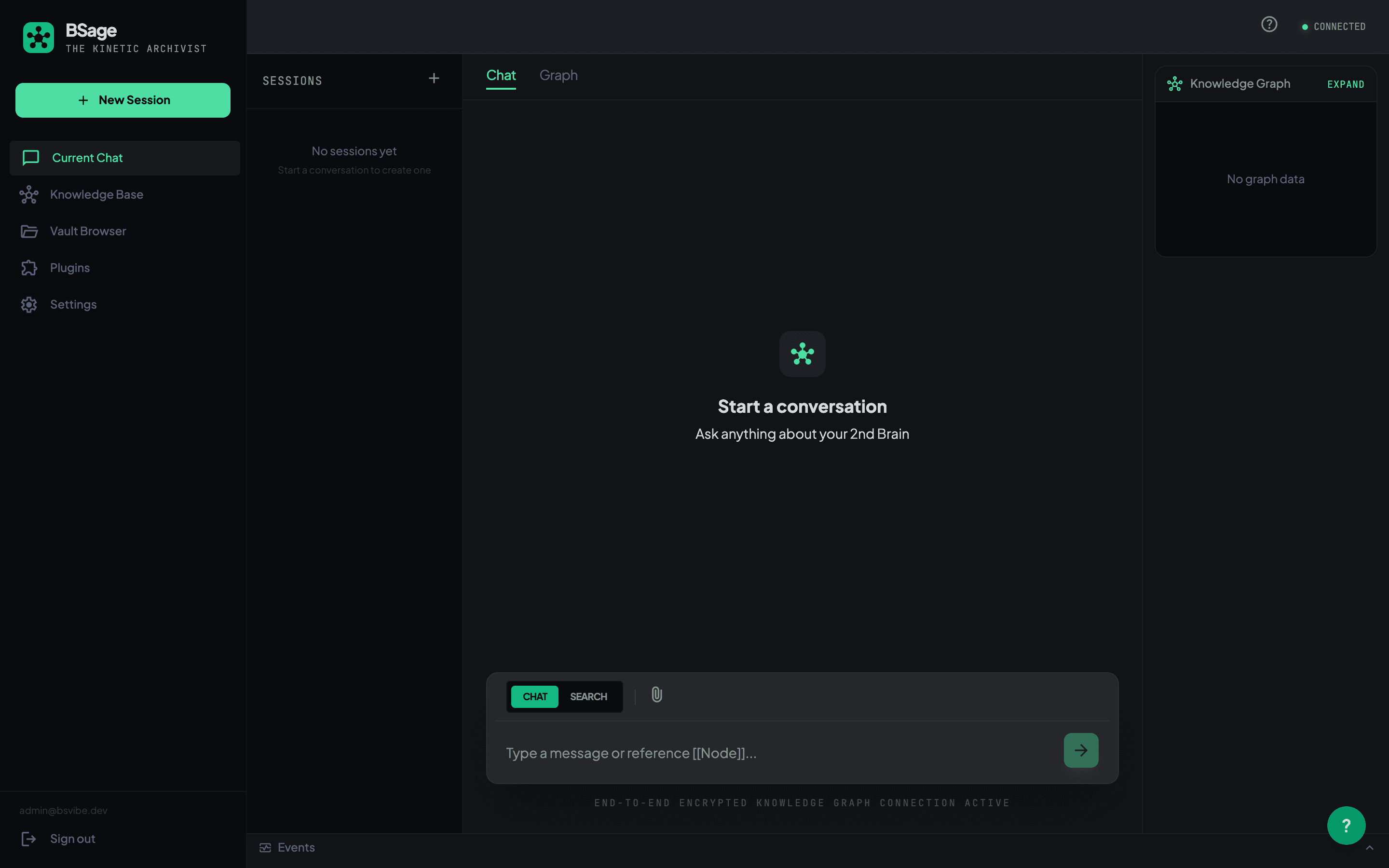
The dashboard displays:
- Knowledge Stats: Total knowledge items and category distribution
- Recent Activity: Recently added or modified knowledge
- Plugin Status: Number of active plugins and their connection status
- Quick Actions: Shortcuts to frequently used features
Step 2: Set Up Plugins
The core of BSage is connecting external services through plugins. Enable the ones you need in the Plugin Manager.
- Click Plugin Manager in the left menu.
- Find the plugin you want and click Enable.
- Enter the required credentials for the plugin.
- Click Test Connection to verify.
- Click Save to store the settings.
Recommended first plugins:
| Plugin | Required Credential | Difficulty |
|---|---|---|
| Telegram | Bot Token (created via BotFather) | Easy |
| RSS | None (just enter the feed URL) | Easy |
| IMAP server info, email/password | Medium | |
| Slack | Slack Bot Token (from a Slack App) | Medium |
:::tip[Quick Telegram Setup]
- Chat with @BotFather on Telegram.
- Use the
/newbotcommand to create a bot. - Enter the Bot Token in the BSage Plugin Manager.
- Send a message to your bot — BSage automatically collects it as knowledge. :::
Step 3: Chat to Add Knowledge
Start a conversation with BSage on the Chat page. Enter questions, notes, or ideas freely and BSage handles the rest.
| Input Type | Example | What BSage Does |
|---|---|---|
| Note | ”Design review meeting next Monday” | Auto-tags (schedule, meeting), saved to Seeds |
| Idea | ”Write a blog post comparing AI agents” | Auto-tags (idea, content), creates an Action |
| Question | ”Find the API design notes I saved last week” | Semantic search in the Knowledge Graph, shows results |
| Link | ”Summarize this paper: https://arxiv.org/abs/2401.12345 ” | Summarizes the content, tags it, saves to Seeds |
| Info | ”GIN indexes are efficient for PostgreSQL JSONB” | Auto-classifies (tech, DB), links to related knowledge |
Step 4: Explore the Knowledge Graph
On the Knowledge Graph page, visually explore relationships between collected knowledge.
- Click a node: View the full details of that knowledge item
- Edges: Show relationships between items (references, related, contradicts, etc.)
- Zoom/pan: Use mouse wheel and drag to navigate the graph
- Filters: Narrow the view by category, tag, or date
- Search: Natural language search highlights related nodes
Step 5: Put Knowledge to Work
Use your collected knowledge in various ways:
- Natural language search: Ask questions in Chat to find and get answers from your knowledge base.
- Summary generation: Compile knowledge on a topic into a summary.
- Actions management: Track actionable items derived from your knowledge.
- Export: Export knowledge as Markdown, JSON, and more.
Next Steps
- Core Concepts — Understand plugins vs skills, the Knowledge Graph, and the 2nd Brain structure
- Plugin Guide — Detailed setup guide for all 18 plugins
Last updated on